
You won’t find the FastSpin99 app by searching the App Store or Google Play. It’s reached from inside the site: open the side menu, tap Download App, and you get a web app built around the account you already use in the browser, with your usual mobile number, password and AUD balance.
Plenty of people looking for a FastSpin99 app in Australia get tripped up by that set-up. This page walks through the steps for Android and iPhone, compares the web app with the mobile browser, and covers the checks that keep you clear of fake apps trading on the brand name.
What the FastSpin99 app actually is
Download App points to an H5 wrapper. H5 is shorthand for HTML5 and here means a web page packaged to open like an app on your phone. FastSpin99 hasn’t put a separate iOS or Android program through store approval. At the time of writing, the menu item leads to an appwrap page on the fastspin99h5api.life domain.
So there’s no store listing to hunt for, and everything you do in the app lands in the same account as the website. If you’d rather not add anything to your phone at all, the site runs fine in an ordinary mobile browser.
This also answers every FastSpin99 APK search. The site’s own route to the app is Download App. An APK file from a download portal, a forum or a link in a message isn’t what the official menu points to, and there’s no way of knowing what it does once installed, so don’t install it and never type your number and password into it.
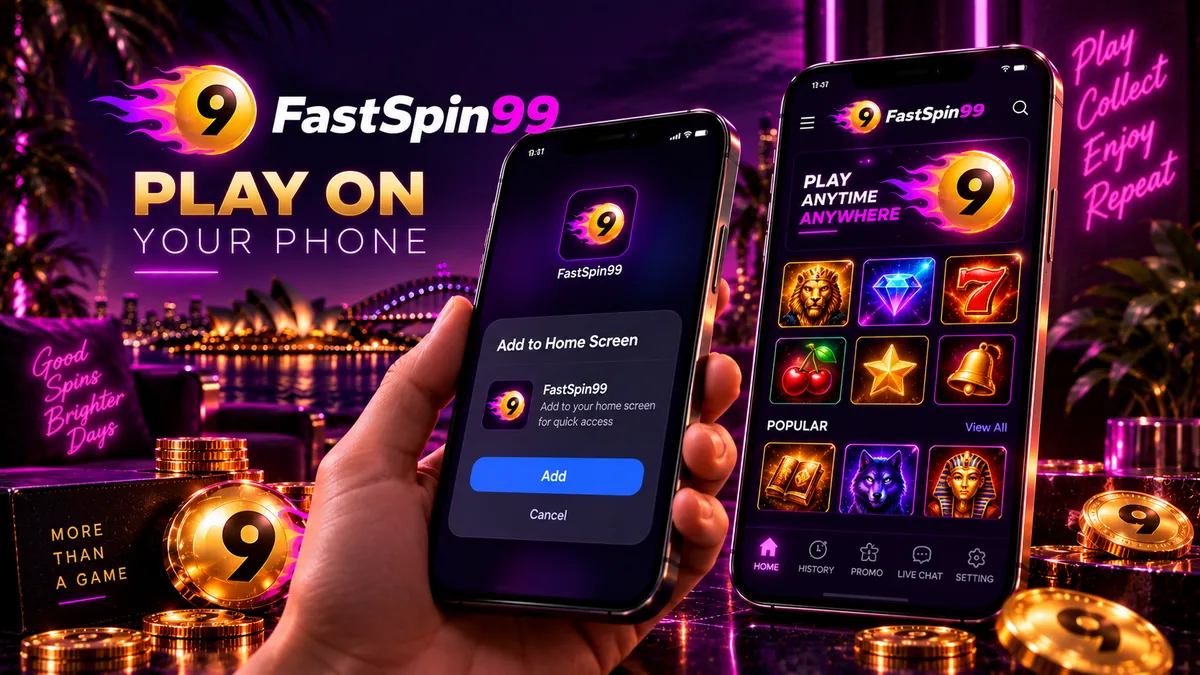
How to get the app on Android
On Android the FastSpin99 download starts in the browser. Chrome is the easiest pick, since its menu has an Add to Home screen option in case the web app page doesn’t place an icon for you.
- Open the site in ChromeGo to the official FastSpin99 address. If it does not load, use the fastspin99.org mirror or the Backup Domain address you saved earlier.
- Open the side menuTap the menu icon to bring up the full list of sections, from HOT GAMES down to the Telegram Group and Facebook Page links.
- Tap Download AppThe item sits in the side menu between Language and Partnership, and it opens the H5 web app page.
- Follow the prompts on the pageGo through the instructions shown on the web app page. Ignore any pop-up or ad offering a separate FastSpin99 file.
- Add it to your Home screen if neededIf no icon appears, open the Chrome menu with the three dots, choose Add to Home screen and confirm the name.
With the icon on your home screen, open it and sign in using the number you registered with. If the form won’t accept your details, the page on FastSpin99 login on mobile covers password resets and the typing slips that phone keyboards are prone to.
How to add FastSpin99 to an iPhone home screen
iPhone owners get the same result without going near a store. Use Safari for this. It only takes a few taps.
- Open the site in SafariLoad the official FastSpin99 address, or tap Download App in the side menu to reach the web app page.
- Tap the Share buttonIt is the square with an upward arrow in the Safari toolbar.
- Choose Add to Home ScreenScroll down the share sheet until you see the option. You may need to scroll past the first row of actions.
- Name it and tap AddKeep the name short, such as FastSpin99, so the icon is easy to spot among your other apps.
- Open it from the iconTap the new icon and sign in with your mobile number and password.
Getting rid of the icon later works the same as with any other app: press and hold, and remove it. Your account and balance stay untouched, because they’re stored on the site itself.
FastSpin99 app vs mobile browser
Both options load the same site, so most rows in this comparison show no difference at all. Where they do differ is in how you get in.
| What you compare | Web app from Download App | Mobile browser |
|---|---|---|
| How you open it | Home screen icon once it is set up | Browser tab, typed address or bookmark |
| Where it comes from | Download App in the side menu, no store listing | Any browser already on your phone |
| Login details | Mobile number and password | Same mobile number and password |
| Balance and cashier | AUD balance with DEPOSIT, WITHDRAW and REFRESH | Same balance and the same buttons |
| Games | Lobby tabs ALL GAMES, POKIES and FREE CREDIT | Same lobby and the same tabs |
| Promotions and support | PROMO tab and LIVE CHAT on the bottom bar | Same PROMO tab and the same live chat |
Picking one is mostly a matter of habit. The icon saves a few taps and always opens the address you saved, which adds up if you play often. For the odd visit, a bookmarked tab does the job just as well.
What you can do from the phone
FastSpin99 mobile play gives you the full site. The whole interface is laid out like a phone app in the first place, so the menus you see on a laptop are the same ones you get on a phone.
- Bottom bar. HOME takes you back to the balance and lobby, HISTORY lists your past activity and PROMO shows current offers with a counter. LIVE CHAT opens support, which runs 24/7, and SETTING leads to the settings area.
- Deposit and Withdraw. You’ll find both in the balance block and in the side menu. The minimum deposit is A$10 and the minimum withdrawal is A$30. PayID, VISA, MasterCard, Apple Pay and crypto are among the methods on the cashier, and the guide to mobile PayID deposits explains why the site asks for an uneven amount with cents.
- Lobby and providers. ALL GAMES and POKIES run across the lobby, while Booongo, JILI and Push Gaming sit in the side menu next to a HOT GAMES section. Our notes on pokies on a small screen go through the provider tabs.
- Free credit tab. FREE CREDIT has a lobby tab of its own, so you can see what’s on offer without leaving the lobby. Check the turnover, max cashout, eligible games and expiry before claiming anything.
- Loyalty and referrals. VIP Tier, Downline & Commission and the Withdrawal Leaderboard all live in the side menu, and Copy Link on the home screen puts your invite link straight on the clipboard. The page on VIP Tier on mobile sets out what is and isn’t published about the programme.
If a deposit seems to be missing, hit REFRESH in the balance block first, and look in HISTORY if the figure still seems wrong after that.
Open FastSpin99 on your phoneNotifications and promo alerts
The site shows a browser prompt that reads “Turn On Notifications To Claim Your Exclusive Bonus”. This is a standard browser permission request. If you allow it, FastSpin99 can send alerts to your phone, and blocking it just means you won’t get any.
Before you tap Allow, it helps to know a few things:
- The prompt does not name the bonus. Any details belong in the PROMO tab inside your account, together with the terms on turnover, max cashout, eligible games and expiry.
- It is reversible. You can switch notifications off later in your browser or phone settings.
- PROMO works without alerts. The tab has its own counter, so new offers are easy to spot with notifications turned off.
- The daily check-in has its own address. It runs on a separate brand domain, checkin.fastspin99reward.com, so don’t be thrown by a different address at that step.
Claiming offers from your phone is covered in more depth in the guide to promo alerts and free credit. FastSpin99 also runs a Telegram group called FastSpin99 AUS, plus a Facebook page, but bonus figures posted outside your account aren’t confirmed until they turn up in PROMO.
Staying on the real site
A home screen icon simply opens whatever address it was saved from, and the FastSpin99 name gets copied a lot. Plenty of sites have fastspin99 in their domain without belonging to the brand, and several advertise bonus amounts the official site doesn’t publish anywhere.
- Official addresses. fastspin99.com is the main site and fastspin99.org is its mirror.
- Backup Domain. The side menu shows a current backup address. Save it while the site is working, because once the main address is down the menu won’t open.
- Status page. Check fastspin99status.pages.dev to find out whether the site itself is having problems before you start deleting icons or resetting passwords.
- Your SMS code. A code sent to your phone is meant for you to enter on the site. Anyone asking for it by text, Telegram or Facebook message is trying to get into your account.
Close the page straight away if your home screen icon suddenly opens something that looks different, asks you to register again or quotes a bonus you’ve never seen in PROMO. Delete the icon, load the official site or the Backup Domain address in your browser and add it to the home screen again. For payments, promotions and support in one place, start with the complete FastSpin99 overview.
Put FastSpin99 on your home screen
Tap Download App in the side menu, add the web app to your phone and sign in with your usual mobile number.
FastSpin99 app FAQ
Is there a FastSpin99 app in the App Store or Google Play?
No. The FastSpin99 app is an H5 web app reached through Download App in the side menu of the official site, not a store listing.
Is there an official FastSpin99 APK file?
The route the site offers is Download App, which opens the web app page. Do not install a FastSpin99 APK taken from another website or a link in a message.
How do I add FastSpin99 to my iPhone?
Open the site in Safari, tap the Share button and choose Add to Home Screen. The new icon then opens FastSpin99 like an app.
Do I need a new account for the app?
No. The app and the mobile browser use the same account, so you sign in with the mobile number and password you registered with.
Can I deposit and withdraw in the app?
Yes. The balance block has DEPOSIT and WITHDRAW buttons. The minimum deposit is A$10 and the minimum withdrawal is A$30.
What should I do if the app stops opening?
Check the status page at fastspin99status.pages.dev, then open fastspin99.org or the Backup Domain address in your browser and add it to your home screen again.